Web UI
Package name: intrudect-web
The Web UI collects alerts from agents and provides search, report, and export capabilities for the gathered data. It supports notification delivery via webhooks and e-mail, mirrors IOC and Tor feed data from the IOC Proxy service, and exports as JSON for Wazuh/Elastic.
Important
IOC and Tor feeds are provided by the separate intrudect-iocfeed
service, which the Web UI mirrors via the IOCFEED configuration block below.
That service must be installed and running, otherwise there is no IOC or Tor
feed for the agents.
Note
Command examples shown on page need to be executed in root shell
Note
If mariadb & rsyslog were installed as dependencies, they need to be enabled and started
MaxMind GeoIP
Install
- Ubuntu
apt install geoipupdate - RedHat https://github.com/maxmind/geoipupdate/releases
Setup
- Create free account in https://www.maxmind.com/
-
Add your AccountID and License key into
/etc/GeoIP.conf -
Add Editions to
/etc/GeoIP.conf: - Execute geoipupdate (NB it will take 1-2 minutes for your maxmind AccountID and LicenseKey values to populate inside their infrastructure)
- Add it to crontab as well
Database setup
-
MariaDB server should be already installed as a depency.
-
Create database and user
-
Allocate as much memory as possible to database.
In/etc/mysql/mariadb.conf.d/50-server.cnfor/etc/my.cnf.d/mariadb-server.cnf(RedHat) -
Restart MariaDB server after config change
-
Ensure start on boot
-
Load timezone tables into MariaDB
Verify that output is > 0
Configuration
Configuration file is in /opt/intrudect-web/config.json.
HOMEURLis used by agents to send alerts and request configuration changes.-
LISTENparameter specifies the IP address and port where the web UI listens, and you should forward your reverse proxy traffic to this location. Since the web UI itself does not have support for TLS, you must set up a reverse proxy, like Nginx or Caddy, in front of it in a production environment. -
DBrefers for MariaDB connection URI (refer to setup guide). IOCFEEDpoints the Web UI at theintrudect-iocfeedproxy and mirrors its per-category feeds into the local database so agents always pull from the Web UI. Each field is a full feed URL (leave a URL empty to disable that feed).BEARERTOKENis optional and, when set, is sent as anAuthorization: Bearerheader on every fetch.INTERVALMINis the mirror poll cadence in minutes (default30). This block is set once inconfig.jsonand shown read-only in the UI. See the IOC Proxy component page for the service itself.GEOIPfolder of geoip database files (Ubuntu -/var/lib/GeoIP/, RedHat -/usr/share/GeoIP/)HTTPSset totruewhen the web UI is behind a TLS-terminating reverse proxy. Ensures secure cookie flags and correct protocol handling. Note: with this enabled, session cookies are markedSecureand will only work over HTTPS — accessing the web UI over plain HTTP will prevent login/sessions from working.REALIPHEADERandTRUSTEDPROXIESare two different ways to recover the client's real IP address when the web UI runs behind a reverse proxy (used for the audit log and for recording the source address of agent requests). They are not the same — set the one that matches how your proxy passes the client IP:REALIPHEADER— the name of a single header your proxy sets with the real client IP (e.g.X-Real-IP, orCF-Connecting-IPbehind Cloudflare). Its value is trusted verbatim and checked first, so the web UI must be reachable only through that proxy. Leave empty if unused.TRUSTEDPROXIES— the list of proxy addresses/CIDRs whoseX-Forwarded-Forheader may be trusted. Only hops coming from these addresses are believed, so clients cannot spoof their IP. When empty, all proxies are trusted.
WEBAUTHNenables passkey/hardware key authentication.RPIDis your domain name,RPORIGINSlists the allowed origins, andRPDISPLAYNAMEis shown to users during registration.LDAPenables Active Directory / LDAP authentication. When enabled, the login page shows a "Domain Login" tab alongside the local account login. See the AD/LDAP authentication section below for details.
{
  "HOMEURL": "https://example.com",
  "LISTEN": "127.0.0.1:8080",
  "TIMEZONE": "Europe/Tallinn",
  "HTTPS": true,
  "REALIPHEADER": "X-Real-IP",
  "TRUSTEDPROXIES": ["127.0.0.1"],
  "DB": {
    "MYSQL": "mysql://intrudect:PASSWORD@tcp(localhost)/intrudect?charset=utf8mb4&collation=utf8mb4_unicode_ci",
    "TCPLOGMAXDAYS": 90,
    "UDPLOGMAXDAYS": 90,
    "DNSLOGMAXDAYS": 90,
    "DHCPLOGMAXDAYS": 90,
    "HTTPLOGMAXDAYS": 90
  },
  "GEOIP": "/var/lib/GeoIP/",
  "IOCFEED": {
    "IPURL": "http://127.0.0.1:8084/open/ip.txt",
    "DNSURL": "http://127.0.0.1:8084/open/dns.txt",
    "RULESURL": "http://127.0.0.1:8084/open/rules.rules",
    "TORURL": "http://127.0.0.1:8084/open/tor/relays.json",
    "BEARERTOKEN": "",
    "INTERVALMIN": 30
  },
  "WEBAUTHN": {
    "RPID": "yourdomain.com",
    "RPORIGINS": ["https://yourdomain.com"],
    "RPDISPLAYNAME": "Intrudect"
  },
  "LDAP": {
    "Enabled": true,
    "URL": "ldaps://dc.yourdomain.com:636",
    "BindPattern": "%[email protected]",
    "InsecureSkipVerify": false,
    "StartTLS": false,
    "AdminGroup": "intrudect_admins",
    "UserGroup": "intrudect_users",
    "AutoProvision": true
  }
}
AD/LDAP authentication
The web UI supports authenticating users against Active Directory or an LDAP server. When enabled, users see a "Domain Login" tab on the login page. Local account login remains available alongside domain login.
LDAP configuration fields
| Field | Description |
|---|---|
Enabled |
Set to true to enable LDAP authentication. |
URL |
LDAP server URL. Use ldaps:// for TLS (port 636) or ldap:// for plain (port 389). |
BindPattern |
Template for constructing the bind identity. %s is replaced with the username. Use UPN format (%[email protected]) for Active Directory or DN format (uid=%s,ou=people,dc=example,dc=com) for OpenLDAP. |
InsecureSkipVerify |
Skip TLS certificate verification. Set to false (default) to verify certificates, true to skip verification. Only use true for testing with self-signed certificates. |
StartTLS |
Upgrade to TLS after connecting on a plain ldap:// connection. Has no effect when using ldaps://. |
AdminGroup |
LDAP group CN whose direct members receive full administrator permissions. |
UserGroup |
LDAP group CN whose direct members receive read-only permissions (except integrations). |
AutoProvision |
Automatically create a user account on first successful LDAP login. If set to false, an administrator must create the user locally before they can log in via LDAP. |
Active Directory groups
Configure the CN of the two security groups that control access:
AdminGroup— direct members receive full administrator permissionsUserGroup— direct members receive read-only permissions (except integrations)
For example, configure "AdminGroup": "intrudect_admins" and "UserGroup": "intrudect_users" for groups with those CNs. The names are matched case-insensitively. Users not directly in either group are denied access; users in both groups receive administrator permissions.
Note
Group membership is checked on every login. If a user's AD group membership changes (e.g. promoted from user to admin), the updated permissions take effect on their next login.
Example: Active Directory with LDAPS
"LDAP": {
    "Enabled": true,
    "URL": "ldaps://dc.corp.local:636",
    "BindPattern": "%[email protected]",
    "InsecureSkipVerify": false,
    "StartTLS": false,
    "AdminGroup": "intrudect_admins",
    "UserGroup": "intrudect_users",
    "AutoProvision": true
}
Example: Active Directory with StartTLS
"LDAP": {
    "Enabled": true,
    "URL": "ldap://dc.corp.local:389",
    "BindPattern": "%[email protected]",
    "InsecureSkipVerify": false,
    "StartTLS": true,
    "AdminGroup": "intrudect_admins",
    "UserGroup": "intrudect_users",
    "AutoProvision": true
}
Example: OpenLDAP with DN bind
"LDAP": {
    "Enabled": true,
    "URL": "ldaps://ldap.example.com:636",
    "BindPattern": "uid=%s,ou=people,dc=example,dc=com",
    "InsecureSkipVerify": false,
    "StartTLS": false,
    "AdminGroup": "intrudect_admins",
    "UserGroup": "intrudect_users",
    "AutoProvision": true
}
Note
LDAP users can also enroll TOTP or WebAuthn as a second factor. When 2FA is configured, the user is prompted for their second factor after a successful domain login.
Start & enable service
Logfile
Web server writes additional info to /var/log/intrudect-web.log
Inital user
Before launching the web UI, an initial user and password must be created using the command-line utility.
cd /opt/intrudect-web
./intrudect-cli -cmd add -type admin -username <username> -password <passowrd>
Initial settings
- Define network names and address ranges in "Site->Networks"
- Review different module settings underr "Monitoring" menu.
- Authorized DNS servers "Monitoring->DNS"
- Authorized DHCP servers "Monitoring->DHCP"
-
Admin workstation addresses/subnets "Monitoring->Admin protocols"
-
Add alerting integrations under "Settings->Integrations"
API keys
Public API keys are created in the web UI under "User->API Keys". API keys act as the current user account and can only use that user's existing permissions. See the API Reference for authentication, permissions, request formats, and endpoint details.
Metadata search and reports
The web UI stores retained metadata in protocol-specific views:
TCP logandUDP logprovide flow search by time range, agent, source, destination, source port, destination port, destination country, and ASN.- TCP and UDP flow views support CSV/XLS export plus reports for top IPs, services, ASN, pairs, map, volume, and interval statistics.
- UDP metadata appears only when UDP flow collection is enabled in the Network Agent configuration (
UDPFlow.Remotefor central logging). - DNS, DHCP, and HTTP metadata use their own log pages and exports.
Add agents
Point your browser to the web UI hostname and log in. Navigate to "Agents" and select the specific agent configuration from the menu.
After adding an agent, you can use "Download Config" to download its configuration file. This file now includes the agent’s login credentials for the web UI. Save the configuration file on the server where this particular agent is running.
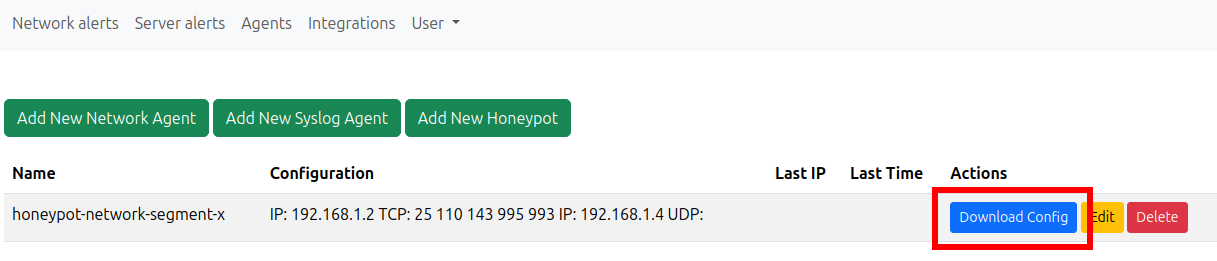
Configuration files are located at /opt/intrudect-<agentname>/etc/config.json
Adding external communication platforms
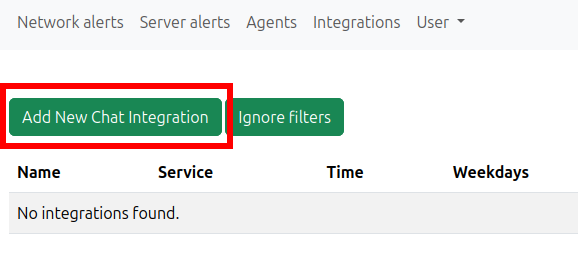
The web UI supports alert delivery to external channels via webhooks and e-mail. This allows users to receive real-time notifications based on their defined rules.
Wazuh integration (optional)
- Install Wazuh agent into the server.
-
Append to
/var/ossec/etc/ossec.conf -
Restart Wazuh agent
-
On the Wazuh server, create a rule group and rules in the file:
/var/ossec/etc/rules/local_rules.xml
For example, one rule to catch all events:Or multiple rules with custom levels:<group name="intrudect"> <rule id="100010" level="12"> <decoded_as>json</decoded_as> <field name="type">useragent</field> <description>$(description)</description> </rule> </group>
PossibleTYPEvalues:honeypot,egress,dhcp,ioc,tor,arp,dns_txt,dns_ptr,dns_a,dns_aaaa,dns_dga,dns,ldap,portscan,smb,useragent,adm_protocol,newdevice,n2n,pwd_brute<group name="intrudect"> <rule id="100010" level="12"> <decoded_as>json</decoded_as> <field name="type">TYPE1</field> <description>$(description)</description> </rule> <rule id="100011" level="12"> <decoded_as>json</decoded_as> <field name="type">TYPE2</field> <description>$(description)</description> </rule> / ... / </group> -
Restart Wazuh